



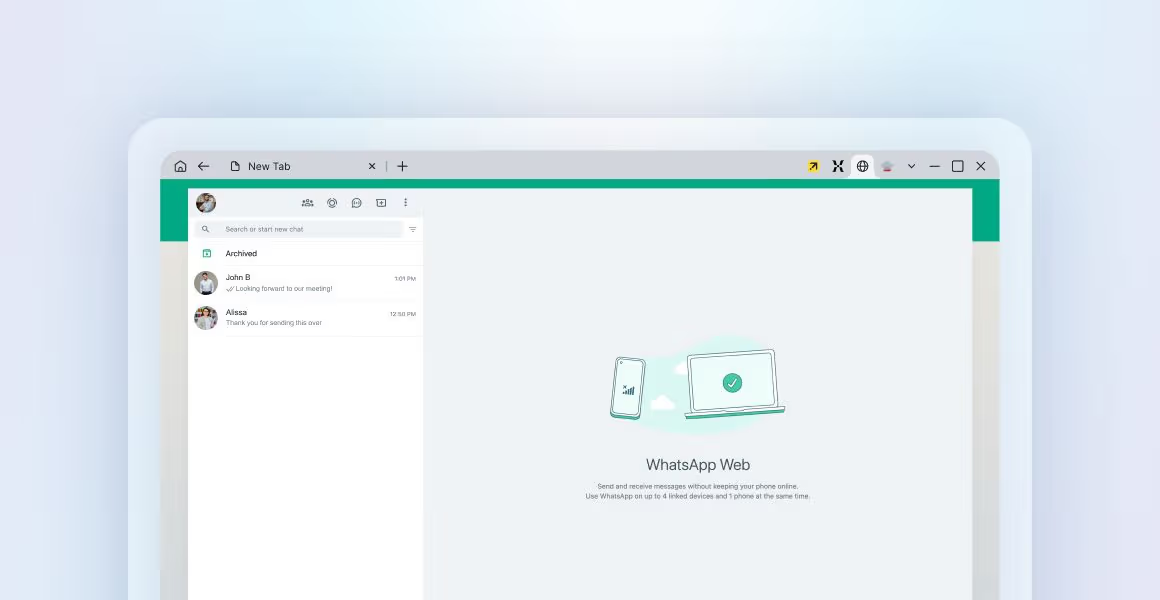
You probably know that having privacy on your computer is absolutely essential nowadays, and most users don’t mind using private browser modes like Incognito on Chrome or Private Window in Firefox. We use them to not keep our search history on our computers, but what about our messaging apps? If you’ve ever wondered if you can use WhatsApp Web without leaving any trace on the other user’s computer, you’re in luck. This tutorial will show you how to perform a WhatsApp Web in Incognito Mode and enjoy your sessions as private as possible
Understanding the Limits of Incognito Mode with WhatsApp
Before we move on to the steps below we need to understand what Incognito Mode does and, more importantly, what it doesn’t do. When you start a WhatsApp网页版 from a private browser window, your activity (i. e. your chat history and messages) is not saved to the computer’s local browser history once you close the browser window. This is perfect if you’re using WhatsApp on a public library computer, a friend’s laptop, or a shared office computer.
However it should be noted that Incognito Mode does not make you an anonymous online user. Your internet service provider (ISP) and employers (if you are on a work network) and WhatsApp itself can still see your activity. This method is most specifically designed to protect your privacy on the local device you are using.
Step-by-Step Guide: WhatsApp Web Login in Incognito Mode
It is quite simple to do a WhatsApp Web inside a private browser. Pretty much the same as the standard login, except with one crucial step.
Step 1: Open Your Browser’s Incognito or Private Window
- For Google Chrome: Right click in the top right corner and select “New Incognito Window” or use the keyboard shortcut Ctrl+Shift+N (Windows/Linux) or Cmd+Shift+N (Mac).
- For Mozilla Firefox: Click the three lines in the top right corner and select “New Private Window”, or Ctrl+Shift+P (Windows/Linux) or Cmd+Shift+P (Mac).
- For Microsoft Edge: Click the 3 dots and choose ” New InPrivate Window ” or Ctrl+Shift+N.
- For Safari: Click “File” in the menu bar and select “New Private Window” or use Shift+Cmd+N.
Step 2: Navigate to the Official WhatsApp Web Website
In the address bar of your new private window type in carefully web. whatsapp. com and press Enter. Make sure you are on the official website ‘s page always.
Step 3: Go to Settings & Login – WhatsApp on Your Phone
Go to the browser, there will be a big QR code on the browser page, go to WhatsApp app on your smartphone. On iphone Tap the ” Settings ” tab in the bottom right and select ” Linked Devices “. (Android – Tap the three dots menu in the top-right ) and then “Linked devices” or “Whatsapp Web “
Step 4: Scan the QR Code
Click the “Link a Device” button on the WhatsApp website. Point the camera of your phone at the QR code displayed on the screen of your computer. Hold it against your monitor until the code is scanned. Complete the WhatsApp Web Login process. Link your mobile phone to your web browsing session.
Step 5: Use WhatsApp Web Securely
After your scanner is complete, your WhatsApp will load in the private browser window. You are all set to go and send/receive messages as normal, all your chats will be viewable and working.
Crucial Step: How to Properly Log Out
Since you’re on Incognito Mode, just closing the browser window will effectively close your session and delete all the chat history and data on your computer. But for maximum security you need to log out manually (from within WhatsApp Web) instead of from the computer as you’ve set up your session. So the session will be finally closed locally (in WhatsApp Web’s servers).
To do this you should in WhatsApp Web click on the three dots menu (whenever you want to close the window) and choose “Log out”. This extra step gives you extra security when you are on truly public computers.
Troubleshooting and Important Considerations
Sometimes you will face some issues while using WhatsApp web in a private window. The most common problem is that the browser is blocking camera access for the QR scanner. Do ensure that when the phone asks about permission for the camera, that you grant permission to the WhatsApp app. Secondly make sure that the phone is well connected to the Internet because the phone relays all messages to the desktop client.
If you need a specific explanation on how to use WhatsApp Web on any browser (including some of the more common issues), you can find useful information here. It also talks about compatibility and more advanced issues and tips.
Conclusion
It’s a popular way of storing data on your local devices, but it’s also very easy to use. You can easily use WhatsApp Web in Incognito Mode. It’s very quick, and very useful. Essentially, you just need to open a new private browser and start browsing the official WhatsApp Web site. Then, you’ll see the QR code you have to scan, and finally you’ll be ready to login. But remember: keep track of your password, or else that bad traffic will keep you from connecting to the web at all and keeping your data local.
